Technology and Speeds
How to Fix Wi-Fi Dead Spots and Weak Signal at Home
To fix Wi-Fi dead spots, first test beside the router and in each problem room so you can separate a broadband fault from weak wireless coverage.
The quick answer
To fix Wi-Fi dead spots, first test beside the router and in each problem room so you can separate a broadband fault from weak wireless coverage. Move the router into the open and retest before buying anything. For one weak room, consider an extender or powerline adapter; for several rooms, use mesh Wi-Fi or wired access points, with Ethernet backhaul where practical.
Key Takeaways
- A fast result beside the router but a poor result in one room points to an in-home Wi-Fi coverage problem, not a need for a faster broadband package.
- Place the router in the open, off the floor and away from thick walls, metal, water, large appliances and enclosed furniture before buying extra equipment.
- An extender needs a usable signal where it is installed; putting it inside the dead spot only repeats a weak connection.
- Mesh suits several weak rooms, while an Ethernet-connected access point is the most dependable answer when walls or floors defeat wireless backhaul.
A Wi-Fi dead spot is a room or part of a room where the wireless signal is absent or too weak for a dependable connection. Start by comparing a test beside the router with the same test in the problem room. If the nearby result is healthy, a more expensive broadband package will not carry the radio signal through a wall. Fix placement or coverage first.
Diagnose the dead spot before buying equipment
Use one phone or laptop for every test, pause large downloads and keep the device in roughly the same position in each room. Run our broadband speed test beside the router, then repeat it at the place where calls, streaming or browsing fail. Record download speed, upload speed, ping and whether the connection drops completely. Test once during a quiet period and again when the problem usually occurs.
A poor result beside the router can indicate a line, router or device problem. Restart the router once, check its cables and updates, then test by Ethernet if possible. A good wired result and poor Wi-Fi result throughout the home points to wireless setup or old equipment. A good nearby Wi-Fi result but poor result in one room identifies a coverage problem. If Ethernet is also below the address-specific minimum guaranteed speed, contact the provider rather than buying a booster.
Room-by-room Wi-Fi baseline and retest
| Test location | Download and upload | Ping or dropouts | Change made | Retest result |
|---|---|---|---|---|
| Beside the router | Your baseline | Record both | None | Reference result |
| Weak room at the usual device position | Same test and device | Record both | None | Problem result |
| Weak room after moving the router | Same test and device | Record both | Placement only | Keep or reverse |
| Weak room after adding equipment | Same test and device | Record both | Name the extender, node or access point | Compare with baseline |
Move the router and remove common obstacles
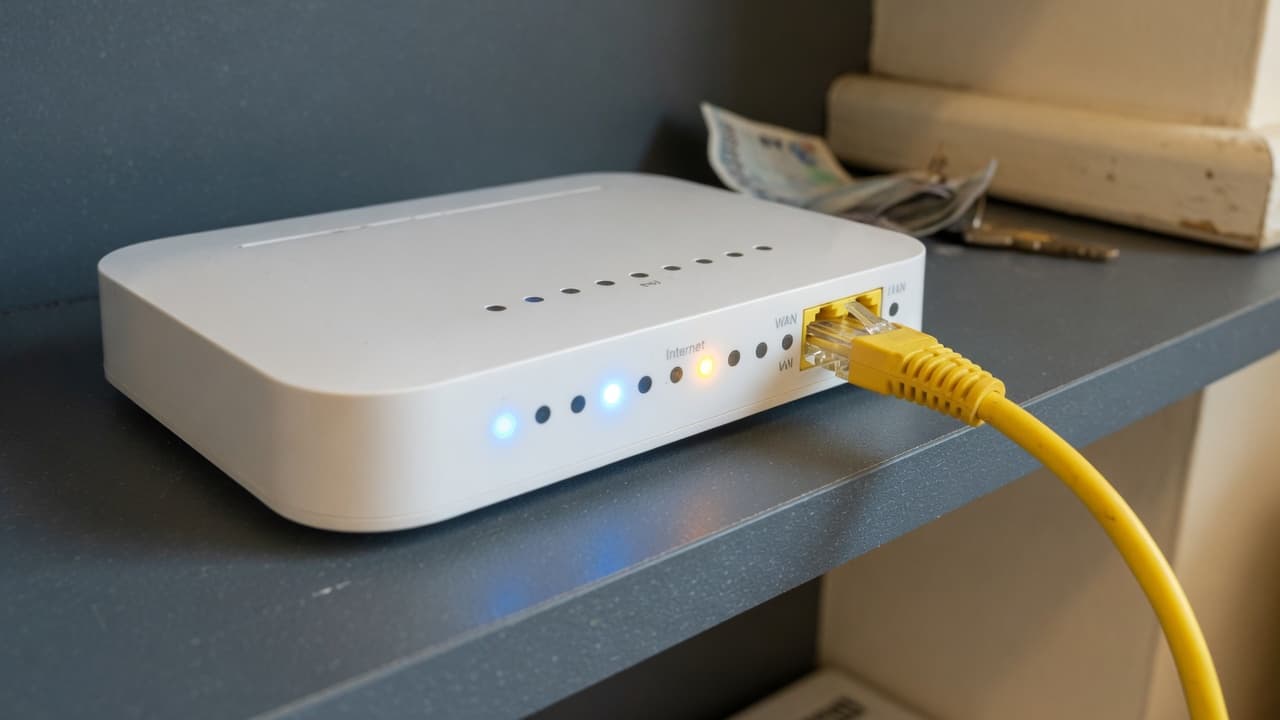
Ofcom recommends placing a router out in the open, off the floor and roughly central in the home. Keep it away from radiators, fish tanks, metal objects, large mirrors and thick walls because water, metal, glass and dense building materials weaken radio signals. Do not hide it in a cupboard or behind a television. Even moving it from floor level to an open shelf can clear obstacles between the aerials and upstairs rooms.
The broadband entry point may limit movement. A longer suitable Ethernet cable can sometimes let a separate router or access point sit more centrally, but do not bend or extend fibre cables casually. Ask the provider what can move if the optical network terminal, cable socket or master socket is in an awkward corner. Keep the router powered so it can receive security and performance updates.
Test both radio bands if the router lets you choose. The 2.4GHz band generally reaches farther and passes through obstacles better, while 5GHz can be faster at shorter range. Automatic band steering often makes this choice for each device. Changing the band may improve Wi-Fi not reaching upstairs, but it cannot overcome every brick wall or reinforced floor.
Choose the right fix for your home
| Situation | Start with | Main limitation | Placement check |
|---|---|---|---|
| One nearby weak room | Router move or range extender | A wireless extender shares an already limited link | Install where the router signal is still usable |
| Several weak rooms or floors | Mesh Wi-Fi | Wireless backhaul also loses strength through obstacles | Put nodes between the router and weak area |
| Thick walls but suitable electrical wiring | Powerline adapter with Wi-Fi | Performance depends on the home wiring and circuits | Use wall sockets and check the manufacturer instructions |
| Home office, gaming room or stubborn dead spot | Ethernet or a wired access point | Cable installation takes planning | Run cable to the room, then broadcast locally if needed |
When a Wi-Fi extender is enough
A range extender can be a sensible wifi black spots fix for one room near the edge of the router's coverage. It receives the existing wireless signal and rebroadcasts it. That means it must sit between the router and dead spot, where the original signal remains usable. An extender placed inside a complete dead zone has little useful connection to repeat.
Expect some performance cost when the same radio handles traffic to the router and device. Some products create a second network name, which can leave a phone attached to the weaker connection as you move. Check compatibility, supported Wi-Fi generation, security updates and whether the unit provides an Ethernet socket. Retest the application that matters, such as a work call, rather than relying only on the number of signal bars.
When mesh Wi-Fi is the better answer
Mesh Wi-Fi uses a main unit and one or more nodes under one managed network. It is usually the clearer choice for several dead spots, a long property or multiple floors. Place each node where it can still communicate well with the main router or previous node. Ofcom warns that too many mesh boxes can make performance worse, so add only what the layout needs and follow the maker's spacing guidance.
Ethernet backhaul connects mesh nodes by cable and removes the need for their inter-node traffic to cross difficult walls wirelessly. It is especially useful in brick homes, extensions and converted lofts. Before buying, read our mesh Wi-Fi buying guide and check whether the provider router must stay connected for digital voice or television. Access-point or bridge mode can prevent two routers from competing to manage the same home network.
Powerline, Ethernet and wired access points
Powerline adapters carry network data over the home's electrical wiring. They can reach a room that defeats wireless backhaul, but performance varies with wiring condition, circuits and electrical noise. Ofcom advises checking for a UKCA or CE safety mark. Follow the product instructions, connect directly to suitable wall sockets where specified and keep the receipt so you can test the equipment in the actual property.
Ethernet is the most predictable connection for a fixed television, games console or work computer. A cable can also feed a wired access point in the weak room, creating a strong local Wi-Fi signal without asking it to cross every wall twice. Use cable rated for the speed of the network. For rented homes, agree any drilling or permanent cable route with the landlord first.
Why broadband is fine but Wi-Fi is slow
Broadband is the service entering the router; Wi-Fi is the local radio link between the router and a device. Ofcom states that Wi-Fi cannot outperform the broadband service, but a strong broadband line can still be followed by weak Wi-Fi in one room. Distance, walls, congestion, the device's radio and the router's position can all reduce the speed after it enters the home.
Use our broadband speeds explained guide to compare line speed with device speed. If every device is slow even over Ethernet, report the connection problem. If only one old device is slow beside the router, update it and test another device. If several devices work beside the router but not upstairs, improve coverage rather than upgrading the package. The next step is to decide whether to replace the provider router, add an access point or leave the hub in place.
A practical order for fixing weak Wi-Fi
- Measure: test one device beside the router and at the exact dead spot.
- Separate line from Wi-Fi: use Ethernet where possible and compare the result with the provider's speed estimate.
- Reposition: move the router into the open, higher and away from dense obstacles, then retest.
- Check the device and band: install updates and compare 2.4GHz with 5GHz if controls are available.
- Add the smallest suitable fix: use an extender for one edge room, mesh for several rooms, powerline where wiring helps, or Ethernet for dependable fixed use.
- Retest and return poor hardware: repeat the same room-by-room checks before committing to more nodes or a faster package.
Compare deals now
Today's best broadband deals — sorted by price.
We may earn a commission when you click a “Get Deal” button. This does not affect our editorial independence.
- Best Value

- Speed
- 150 Mbps
- Monthly price
- £12.50/mo
- Contract
- 12 months

- Speed
- 35 Mbps
- Monthly price
- £18.50/mo
- Contract
- 12 months
- Fastest

- Speed
- 300 Mbps
- Monthly price
- £19.00/mo
- Contract
- 18 months
| Provider | Speed | Monthly price | Contract | Affiliate link |
|---|---|---|---|---|
| 150 Mbps Superfast | £12.50/mo | 12 months | |
| 35 Mbps Superfast | £18.50/mo | 12 months | |
| 300 Mbps Ultrafast | £19.00/mo | 18 months |
Frequently Asked Questions
Editorial and Source Notes
We review guides against our published methodology and add source links where external verification materially helps the reader check claims, dates, and regulator-backed context.
- BroadbandPicker review methodology
- BroadbandPicker editorial policy
- Ofcom home Wi-Fi placement, bands, Ethernet and equipment guidance, verified 14 September 2026
- Ofcom broadband and Wi-Fi troubleshooting, mesh, powerline and consumer-rights guidance, verified 14 September 2026
- TP-Link Canada comparison of extender, powerline and mesh layouts, verified 14 September 2026
- Broadband Compare UK guide to diagnosing and fixing Wi-Fi dead zones, verified 14 September 2026
- BroadbandSwitch.uk guide to causes and fixes for home Wi-Fi dead zones, verified 14 September 2026